
 01273 837559
Follow this step-by-step guide to adding an existing seller against a vehicle purchase invoice
Step-By-Step Guide:
- Login to Autopromotor
- Click on ‘My stock’ on the left hand navigation menu
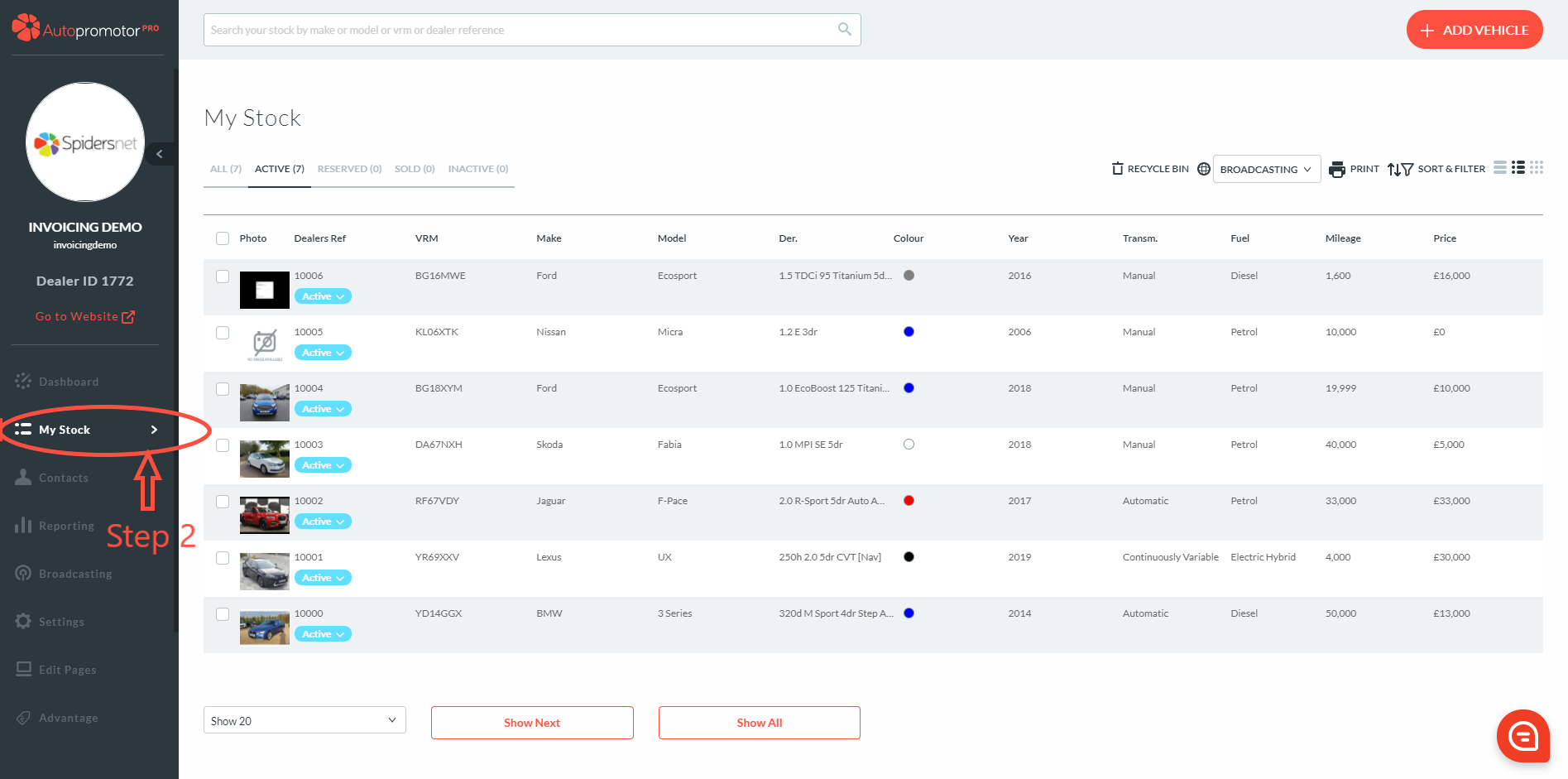
3. Find vehicle you want to raise a purchase invoice against
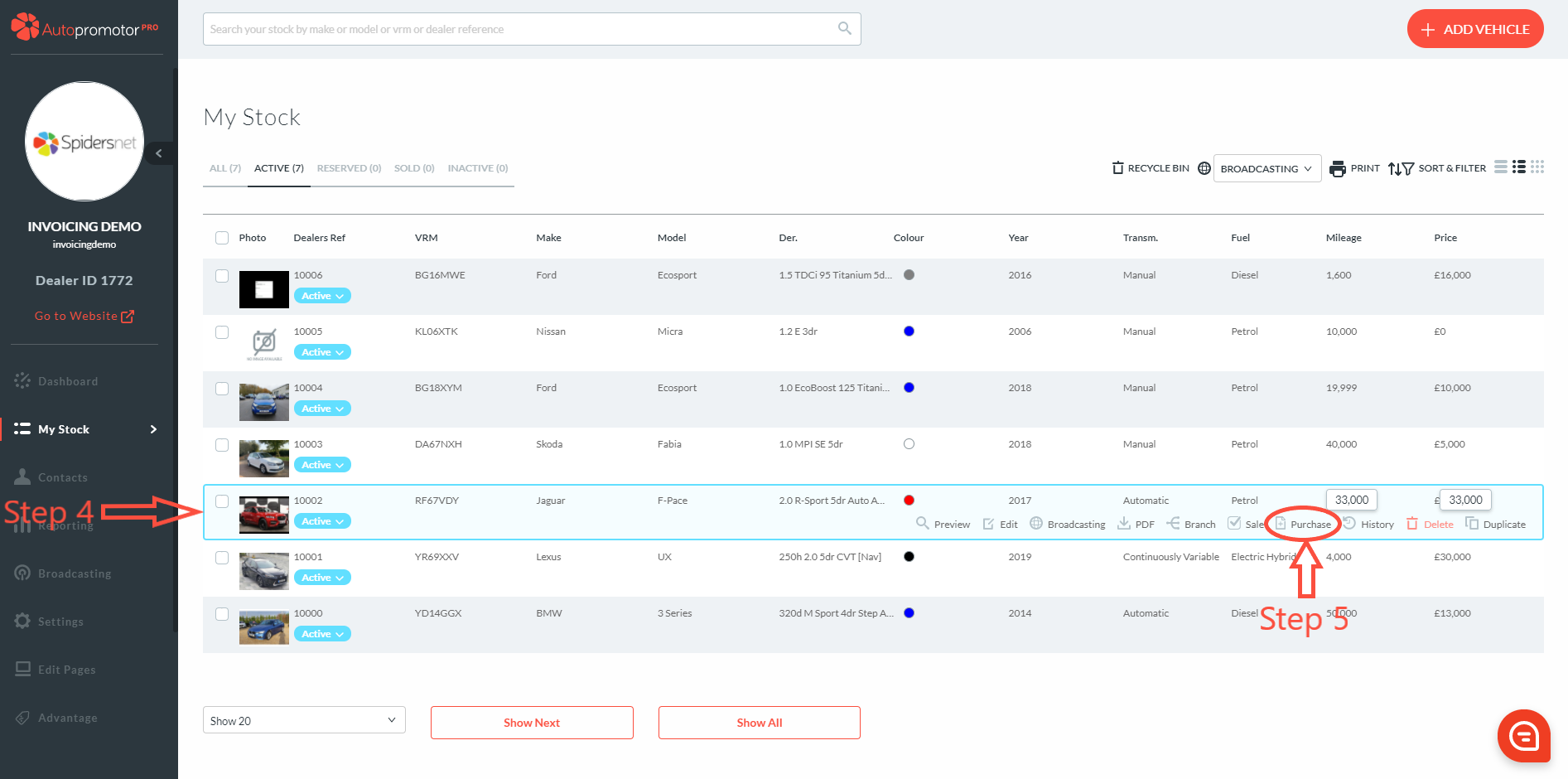
4. Hover cursor on vehicle line – This will bring up more options
5. Click on ‘Purchase’
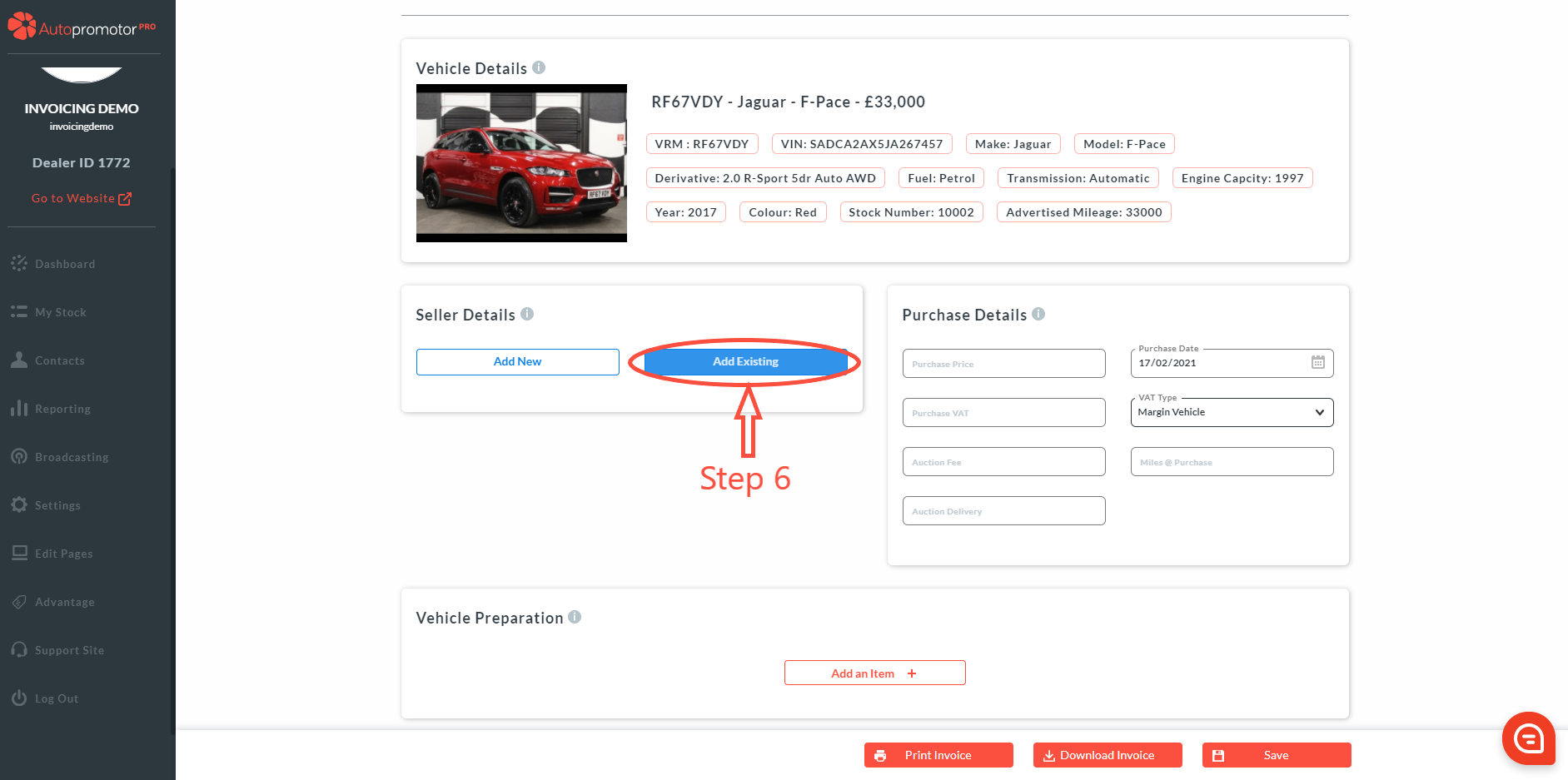
6. Click on ‘Add Existing’ under ‘Seller Details’
7. ‘Assign Existing Contact’ box will appear. Select the seller from your list of contacts.
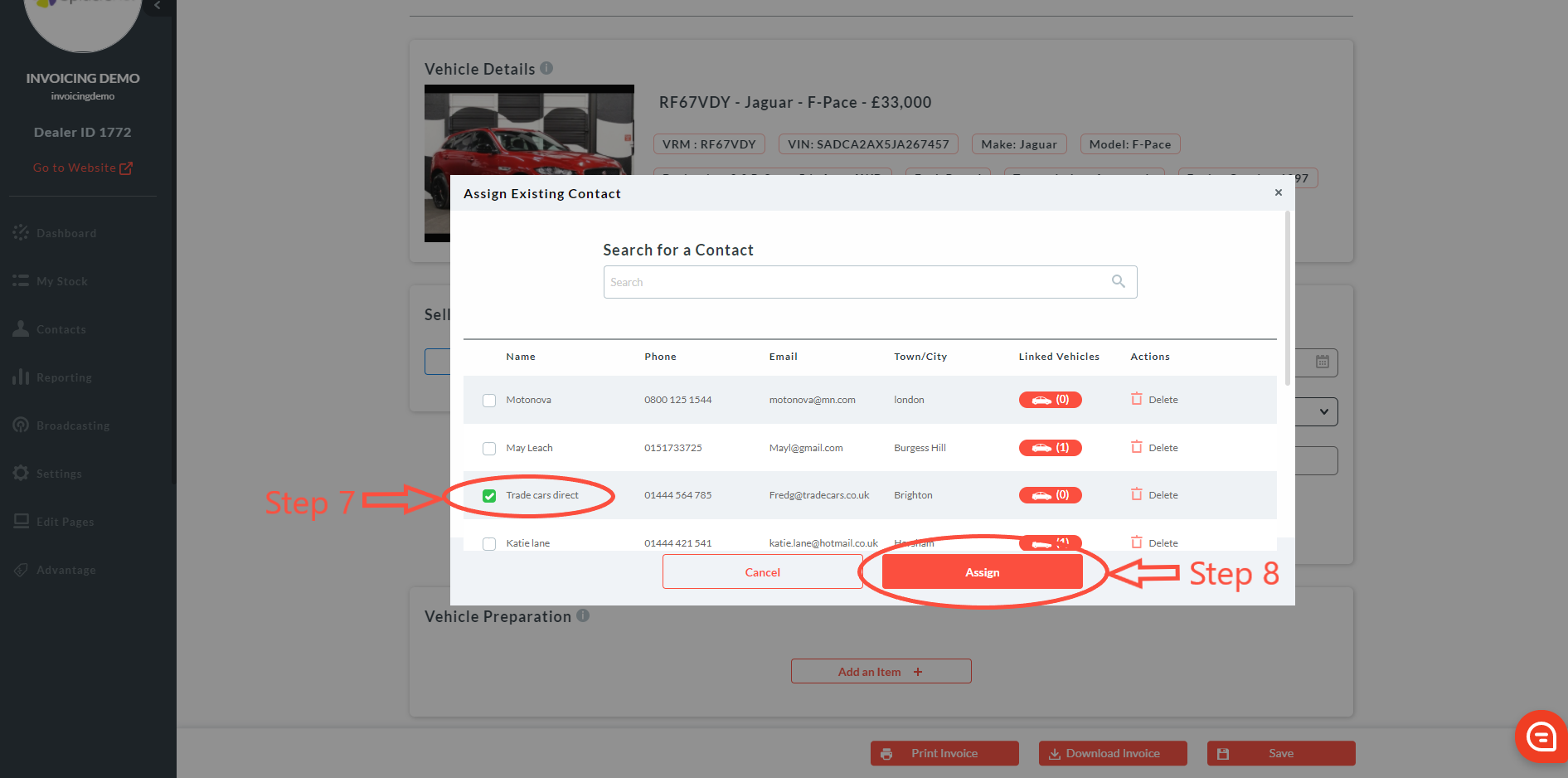
8. Click on ‘Assign’. Details will be pulled through to the ‘Seller Details Form’
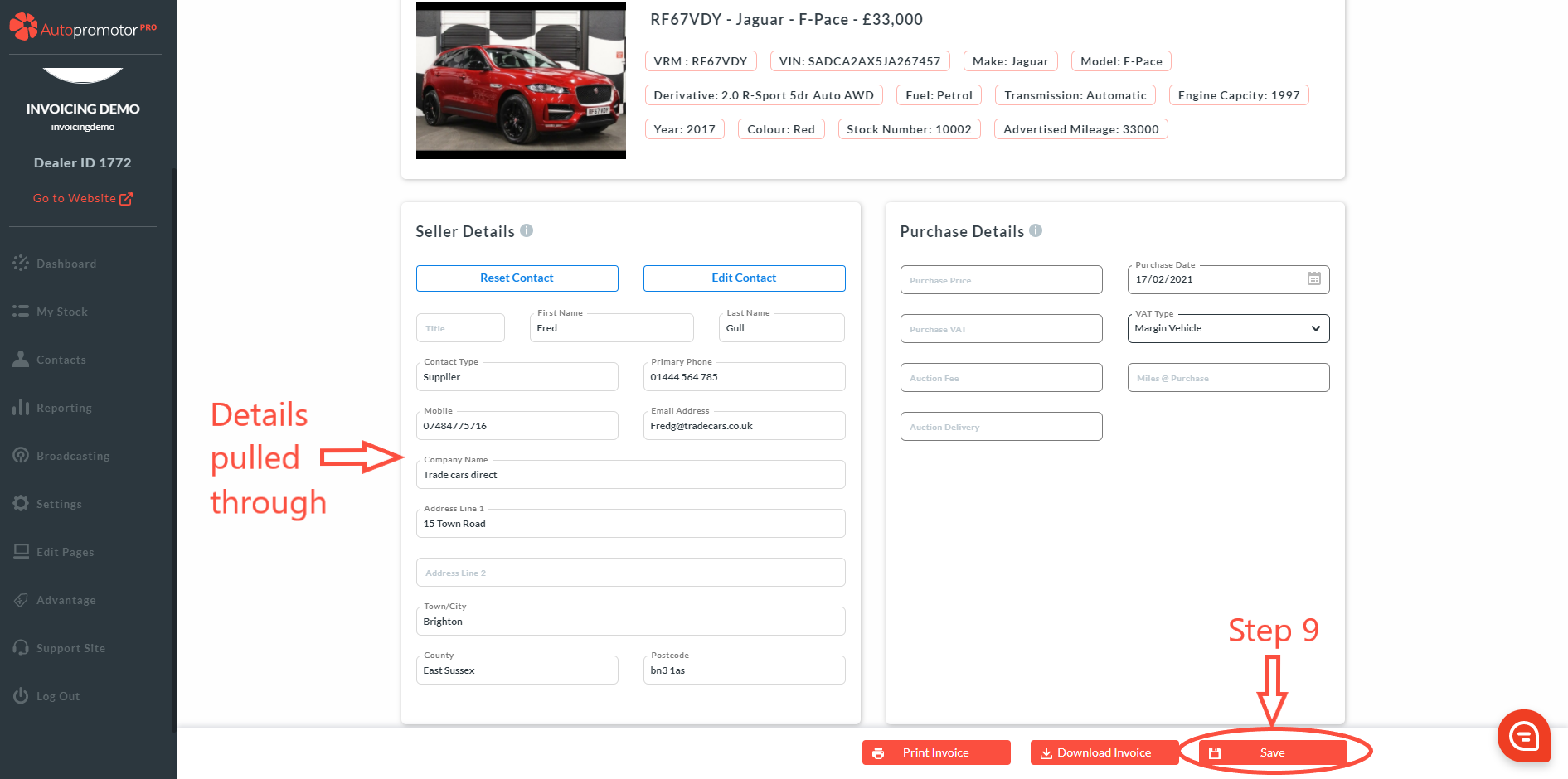
9. Click on ‘Save’
Click here to follow our guide on where to add in vehicle purchase details
Was this helpful?
Let us know if this guide was helpful and you found out what you needed to know. If you didn't find all the information you required, then click 'No I still need more help' and fill in the form so we can assist you further.
 01273 837559
 Email Us