
 01273 837559
This video guide will help direct you to editing images within your website content pages.
Login to Autopromotor
- Go to ‘Pages’ on the left hand navigation bar
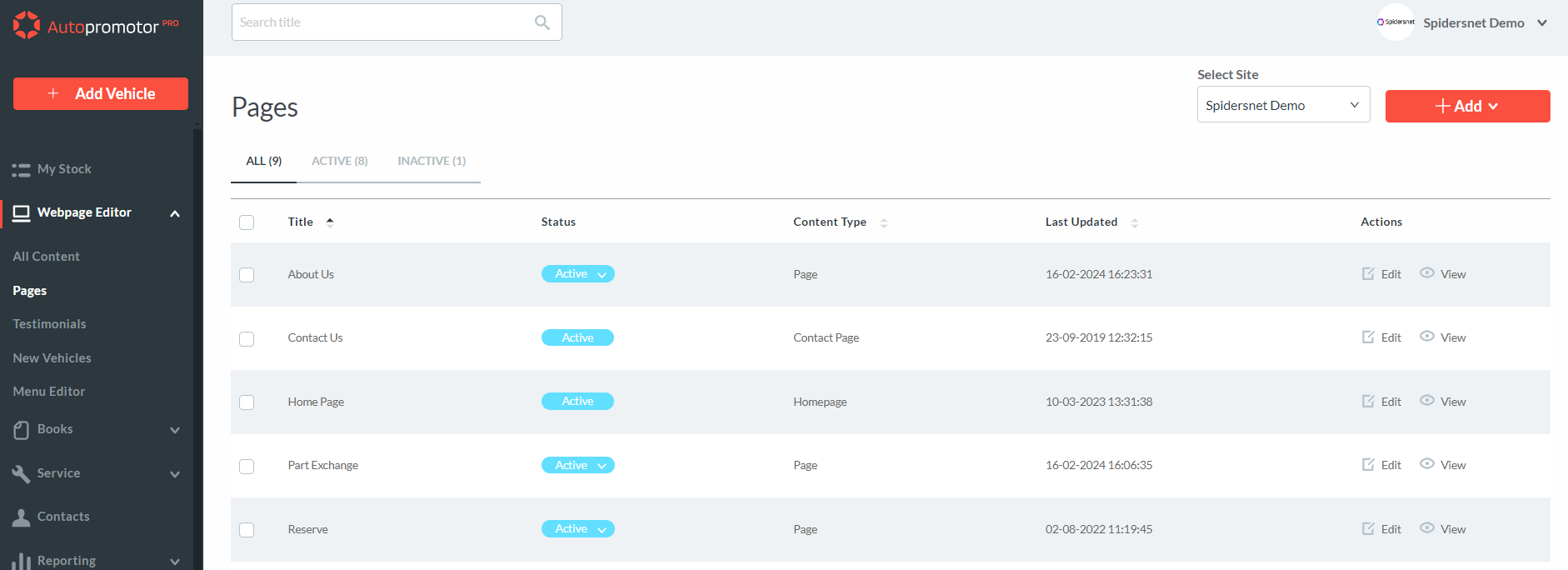
3. Find the page you want to add slides to and click on ‘Edit’
4. Scroll down to ‘Media’ Section
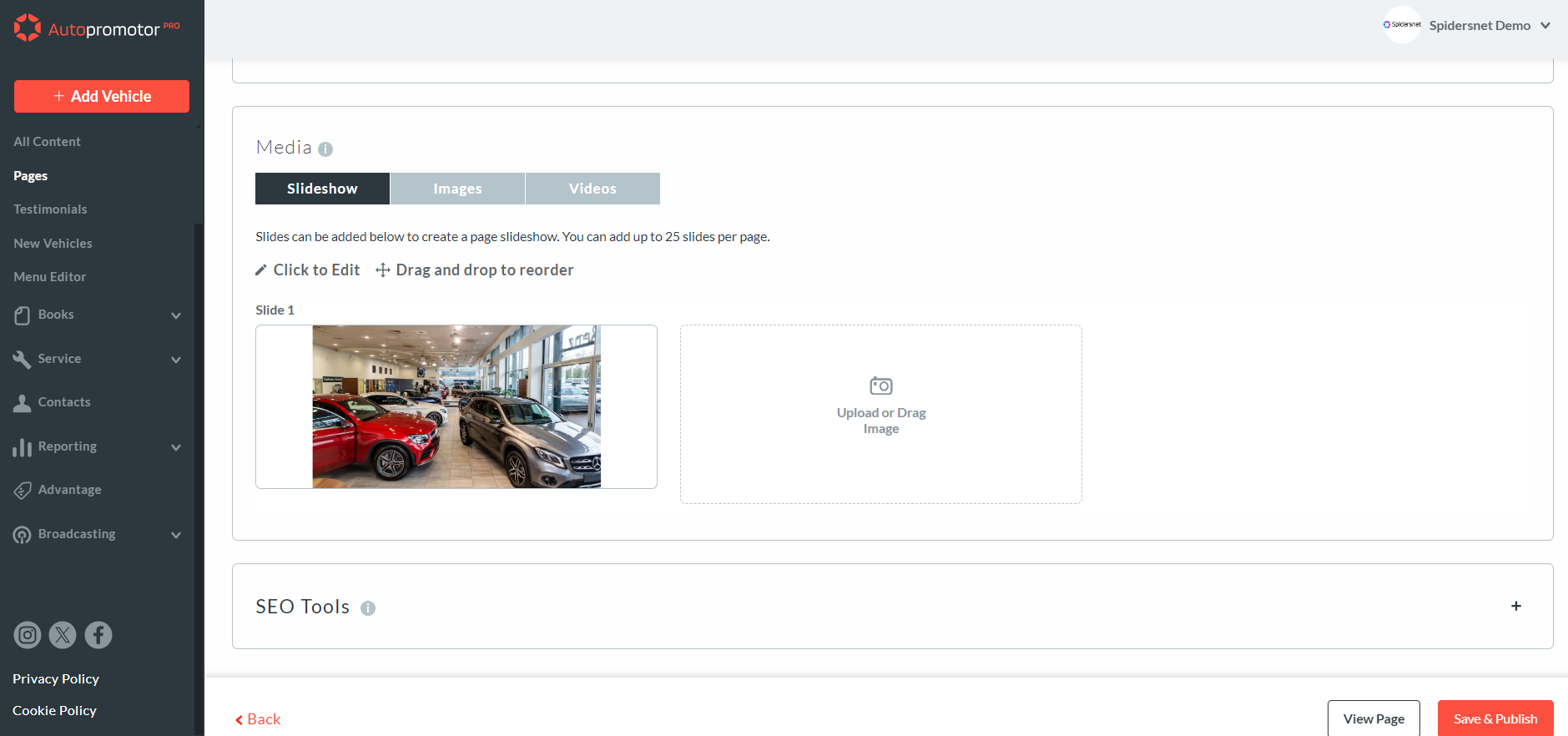
5. Select the media type you wish to edit, Slideshow, Images or Videos & upload
6. You can drag and drop your slides & images to your prefered order
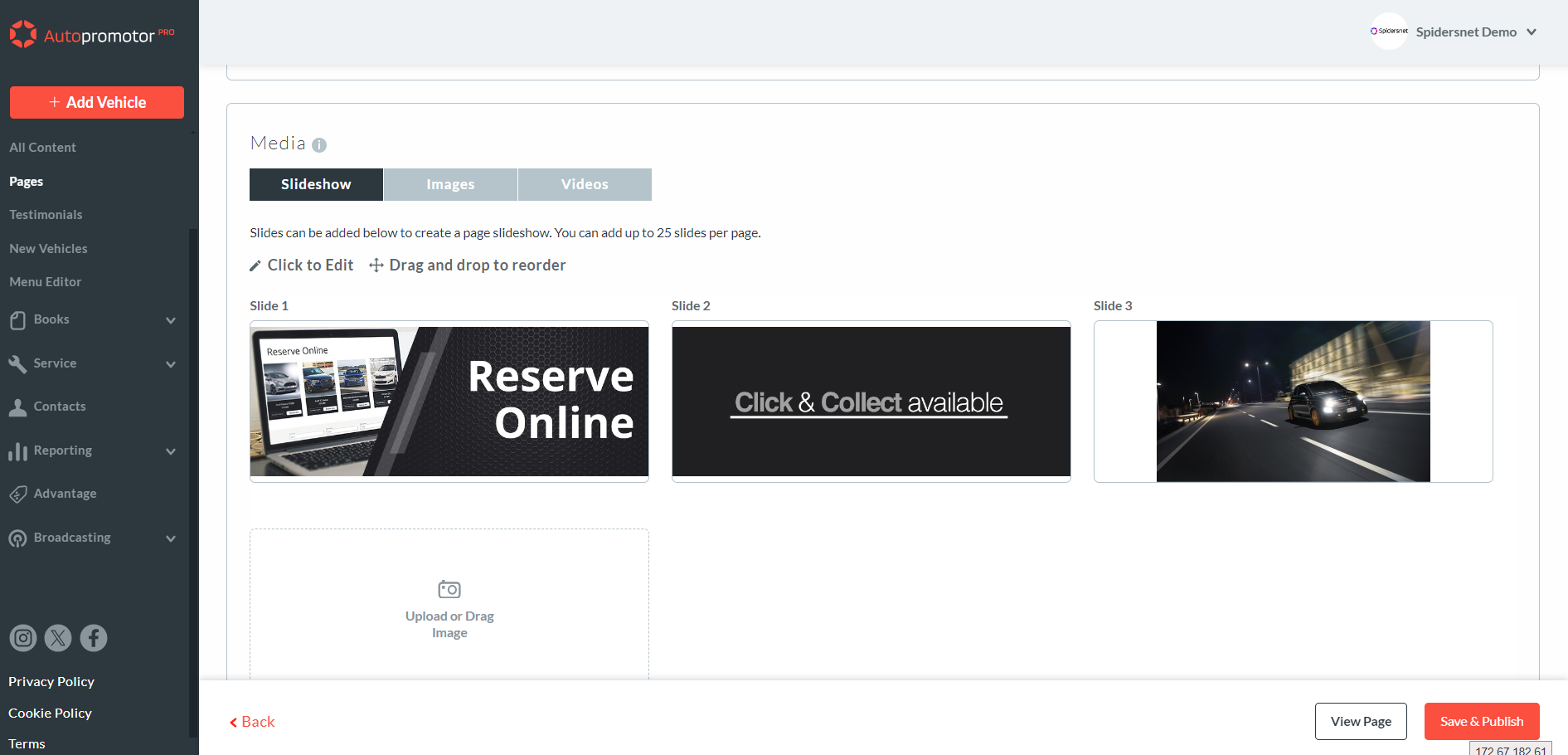
8. Click on ‘Save & Publish’
NOTES:
- The slideshow can feature images to show updates, opening times, deals & offers surrounding your dealership
- Once you have clicked Save & Publish, your new slide will start to appear on your site within 5 minutes
- You can add up to 10 slides
Was this helpful?
Let us know if this guide was helpful and you found out what you needed to know. If you didn't find all the information you required, then click 'No I still need more help' and fill in the form so we can assist you further.
 01273 837559
 Email Us