
 01273 837559
Follow our step-by-step guide on how to add hyperlinks to individual slides
- Login to Autopromotor
- Go to ‘Edit Pages’ on the left hand navigation bar
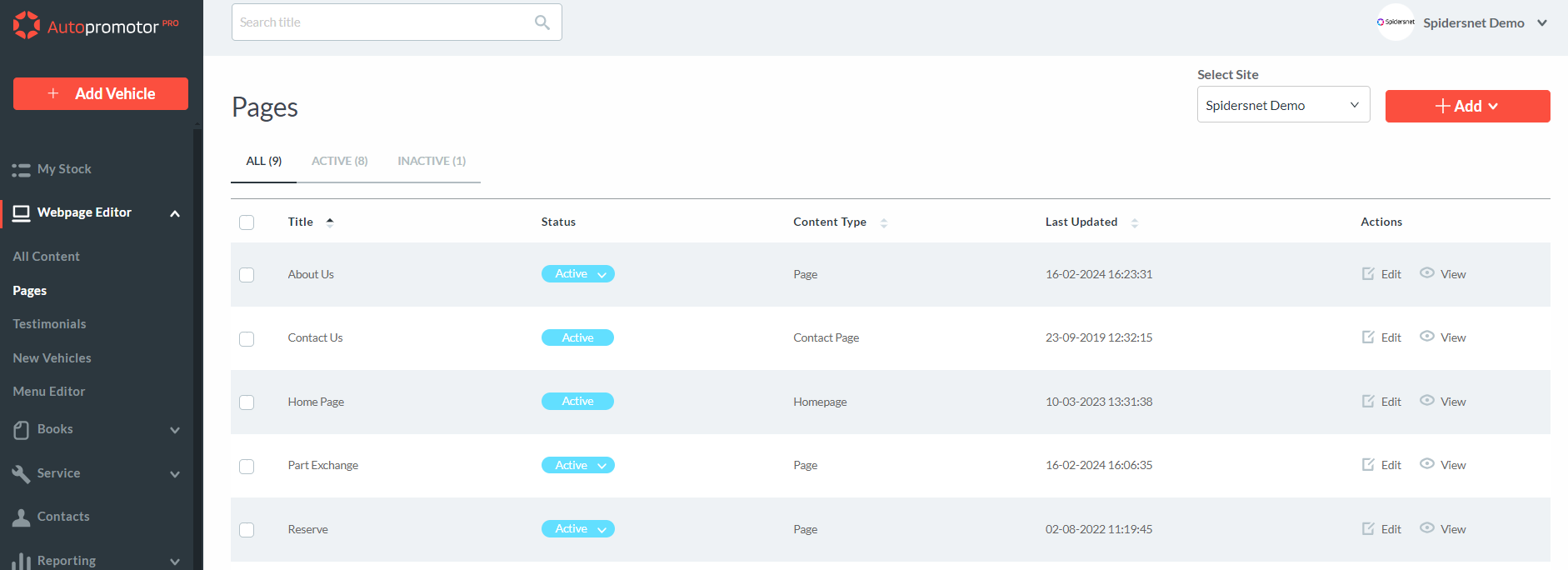
3. Find the page your slides are on where you want to add links to and click on ‘Edit’
4. Scroll down to ‘Media’ Section
5. Click on ‘Slideshow’
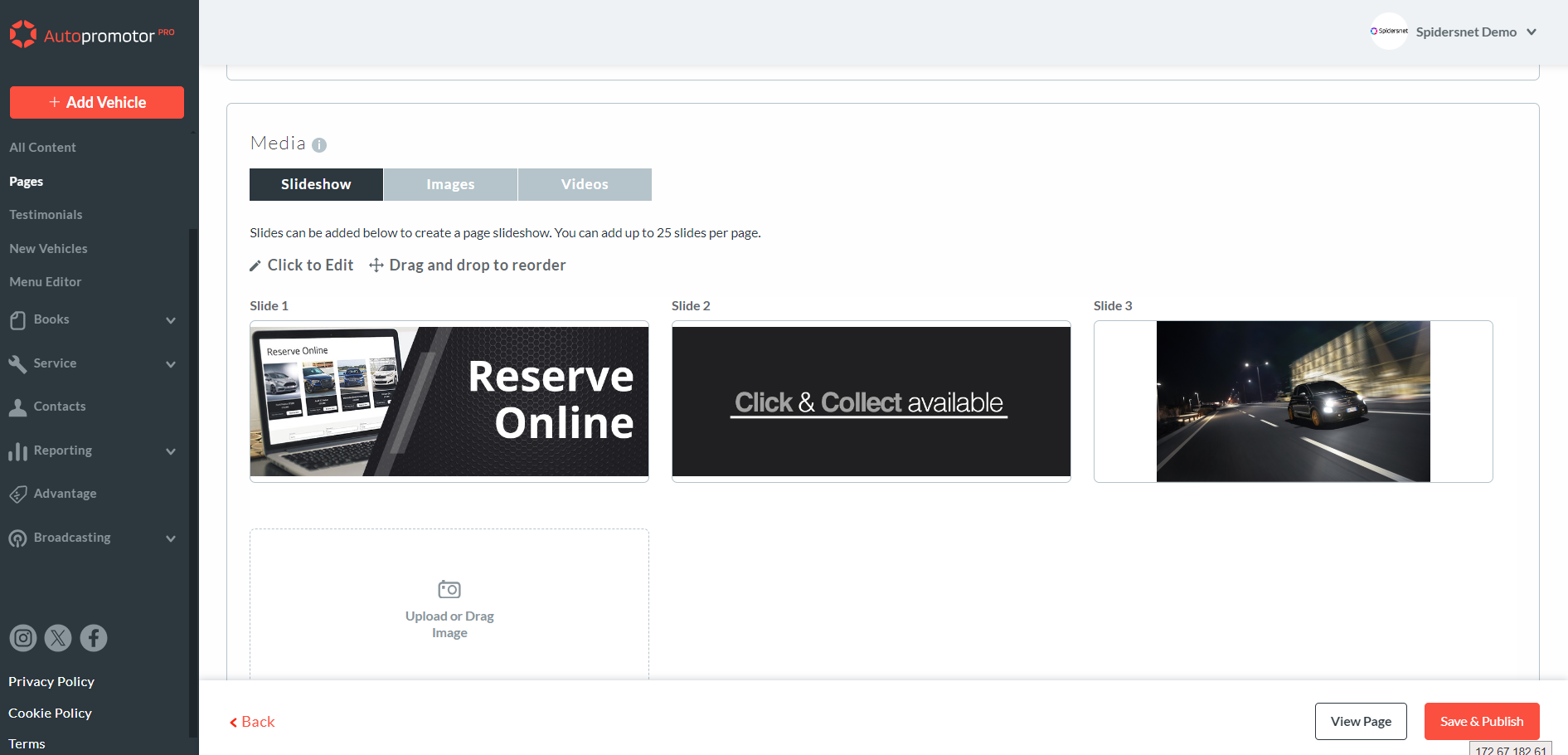
6. Find the slide you would like to put a URL link against
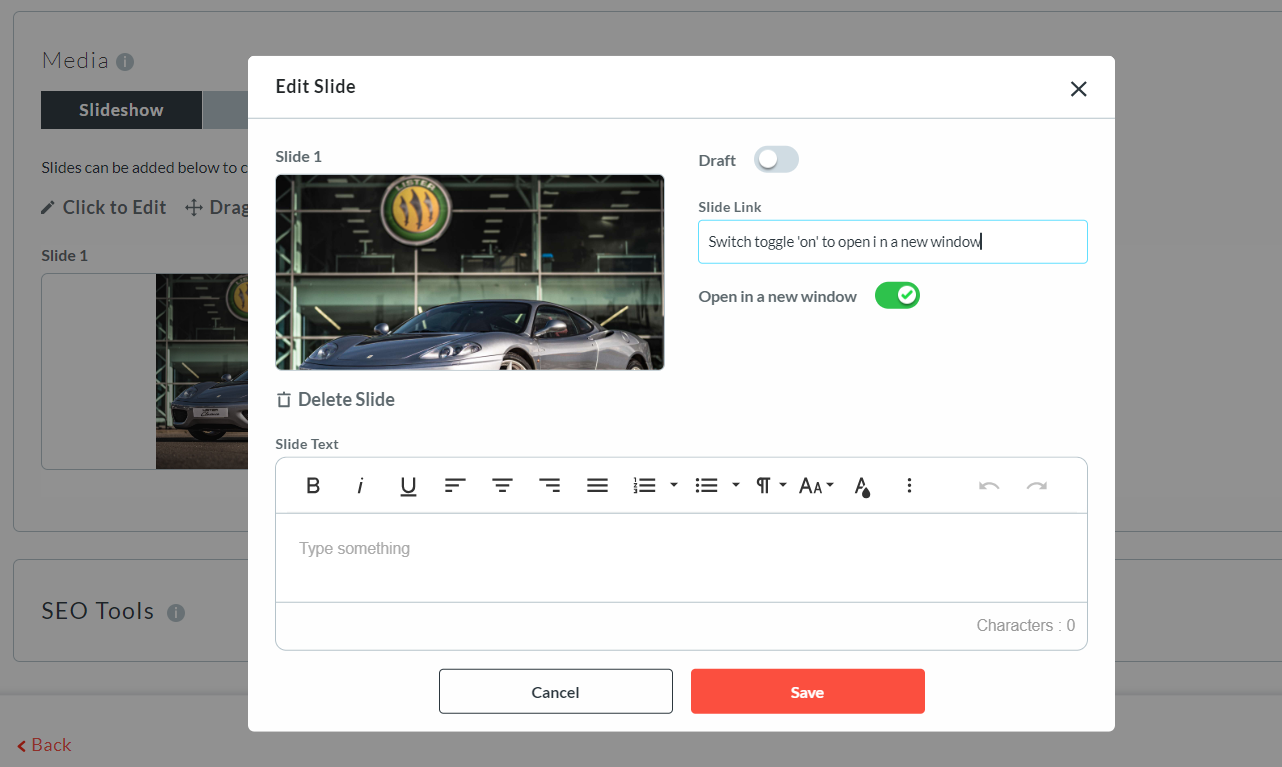
7. Copy and paste the page URL in the ‘Slide Link’ Box
8. If this link is going to another website we stringly recommend that you enable the toggle ‘Open in a new window’
9. Click on ‘Save & Publish’
NOTES:
- The URL links can link to internal pages such as Contact Page, Offers Page, Vehicle ads page
- The URL link can also link to external pages from your website. Simply copy the external link and paste in the ‘Slide Link’ box
- External links could be to warranties, reviews or finance brokers
- Once the URL link has been assigned, when the slide is clicked on by a user, it will take the user to the associated page
Was this helpful?
Let us know if this guide was helpful and you found out what you needed to know. If you didn't find all the information you required, then click 'No I still need more help' and fill in the form so we can assist you further.
 01273 837559
 Email Us