
 01273 837559
Follow this step-by-step guide on how to re-order your slideshow.
- Login to Autopromotor
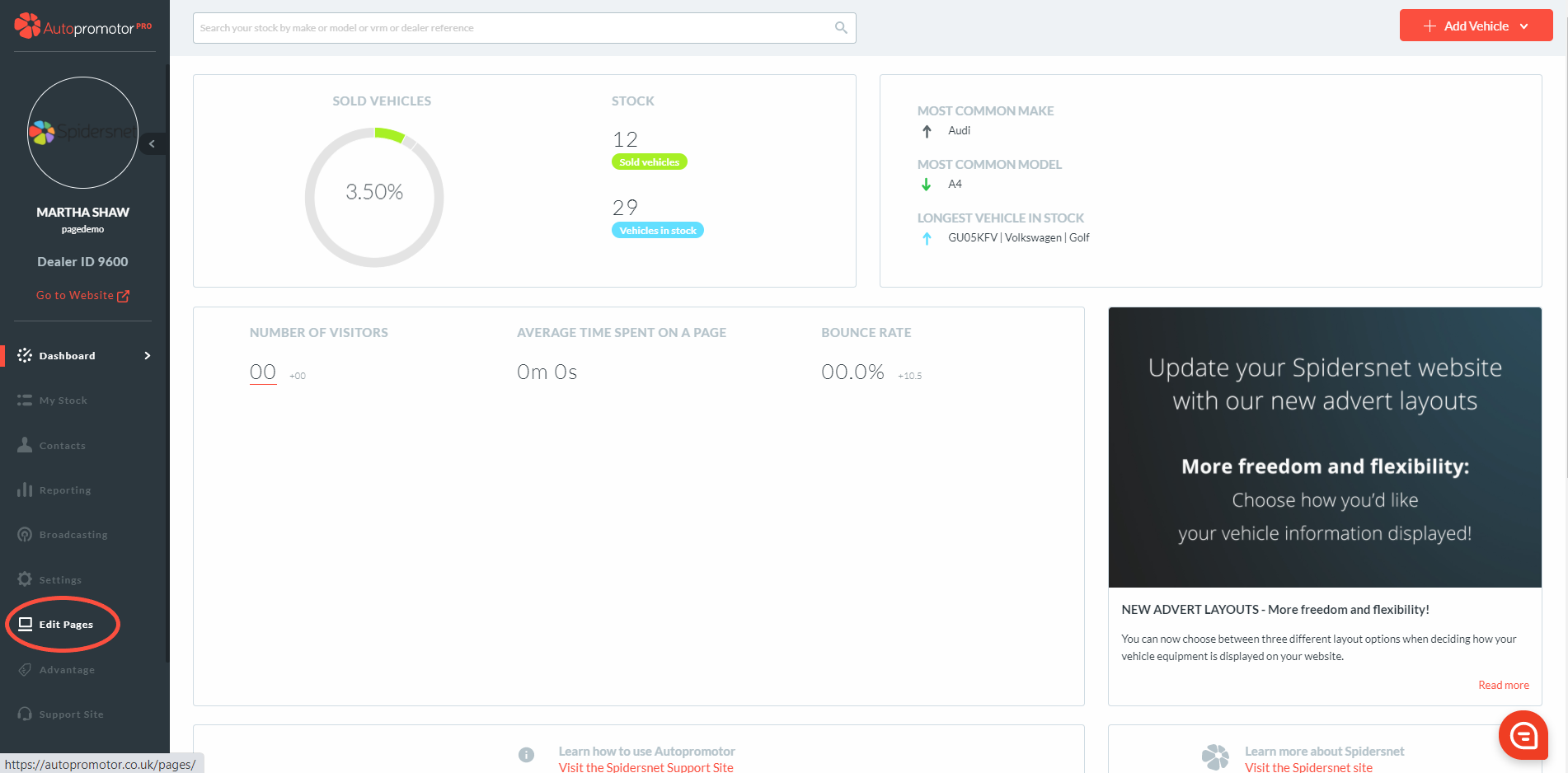
- Go to ‘Edit Pages’ on the left hand navigation bar
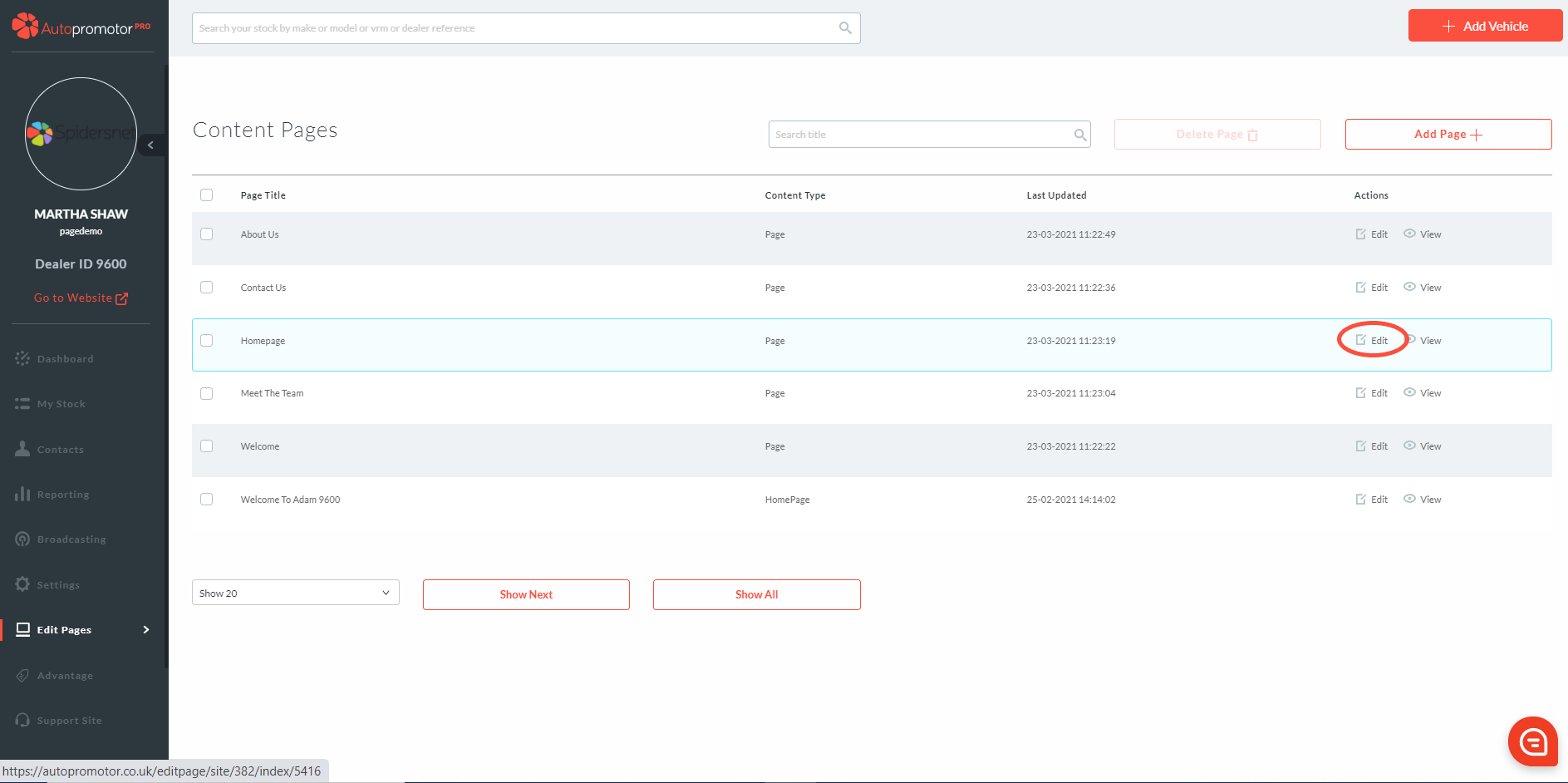
3. Find the page you want to re-order slides on and click on ‘Edit’
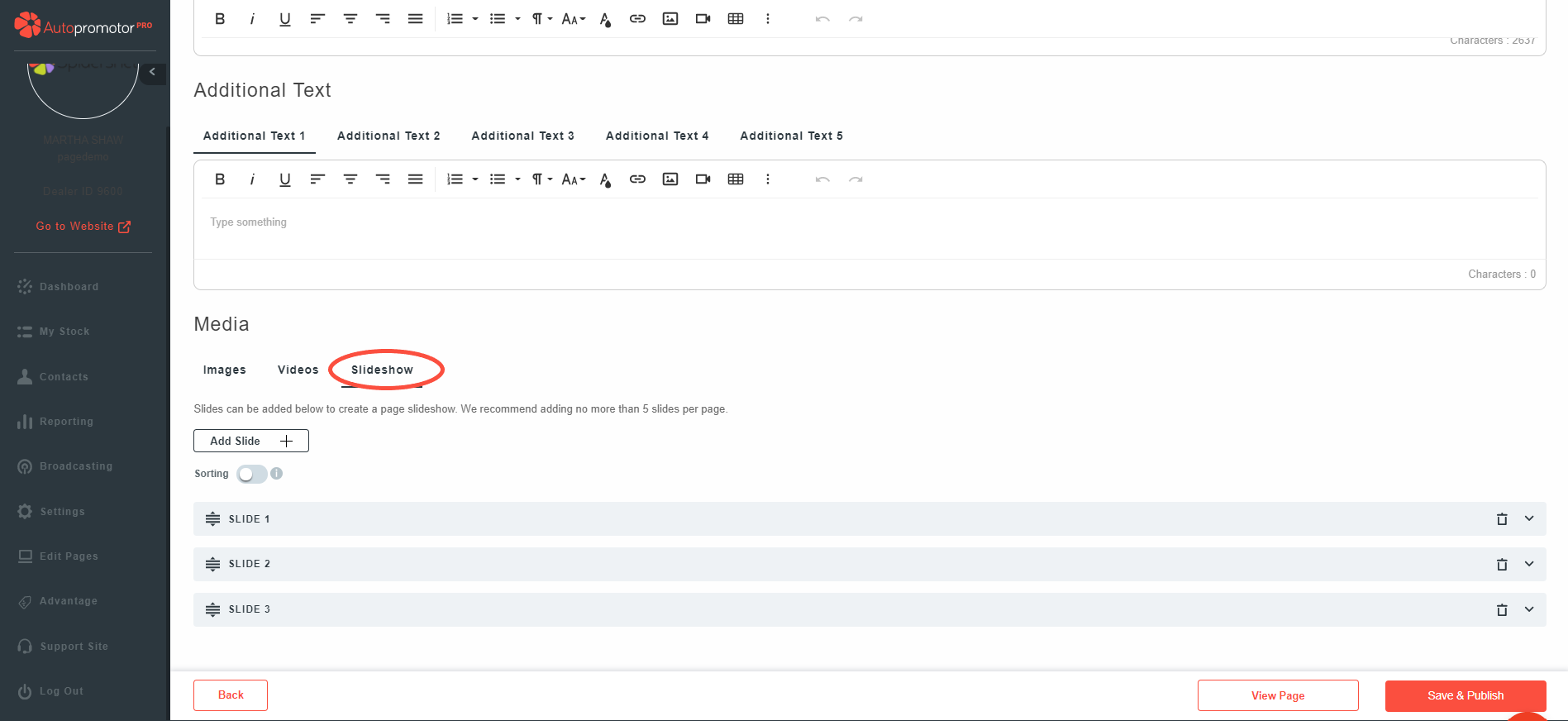
4. Scroll down to ‘Media’ Section 5. Click on ‘Slideshow’
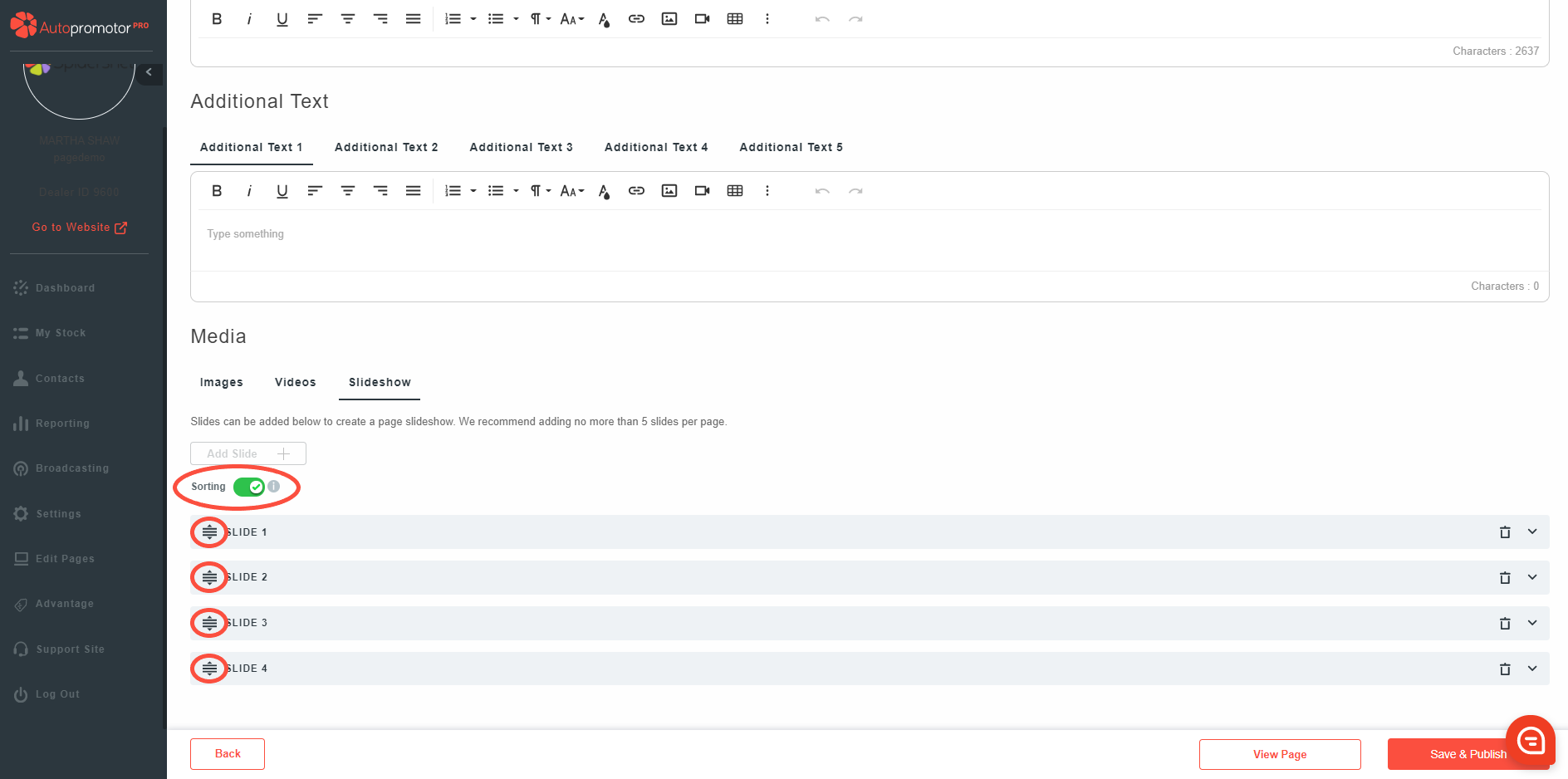
6. Expand all of your slides so you know which order you are sorting them into 7. Toggle the button to green where it states ‘Sorting’ 8. Using the left hand icon, reorder your slides
9. Once done, click on ‘Save & Publish’
NOTES
- Whilst the sorting function is on, you cannot edit any of the slides
- The slide numbers will automatically update
- Once you have clicked on ‘Save & Publish’ the sorting function will automatically disable again.
Was this helpful?
Let us know if this guide was helpful and you found out what you needed to know. If you didn't find all the information you required, then click 'No I still need more help' and fill in the form so we can assist you further.
 01273 837559
 Email Us